
Getting Started
Download, verify and run getPutty. There is nothing to install.
Download
getPutty ships as one executable, getPutty.exe (95,744 bytes). Get it from the download section and put it in any folder. It needs no administrator rights and writes no settings to the registry.
System requirements
- Operating system: Windows XP, Vista, 7, 8, 10, 11 (32- or 64-bit).
- PuTTY or KiTTY: getPutty runs PuTTY and places its window in a tab; install PuTTY separately. 0.77 or newer is recommended because it allows
-pwfile, which keeps passwords off the command line. - Prerequisites: none — no C runtime, .NET or Visual C++ redistributable.
Verify the download (optional)
Compare the file’s SHA-256 with the value in the download section. In PowerShell:
Get-FileHash .\getPutty.exe -Algorithm SHA256
At a command prompt (including Windows XP):
certutil -hashfile getPutty.exe SHA256
First run
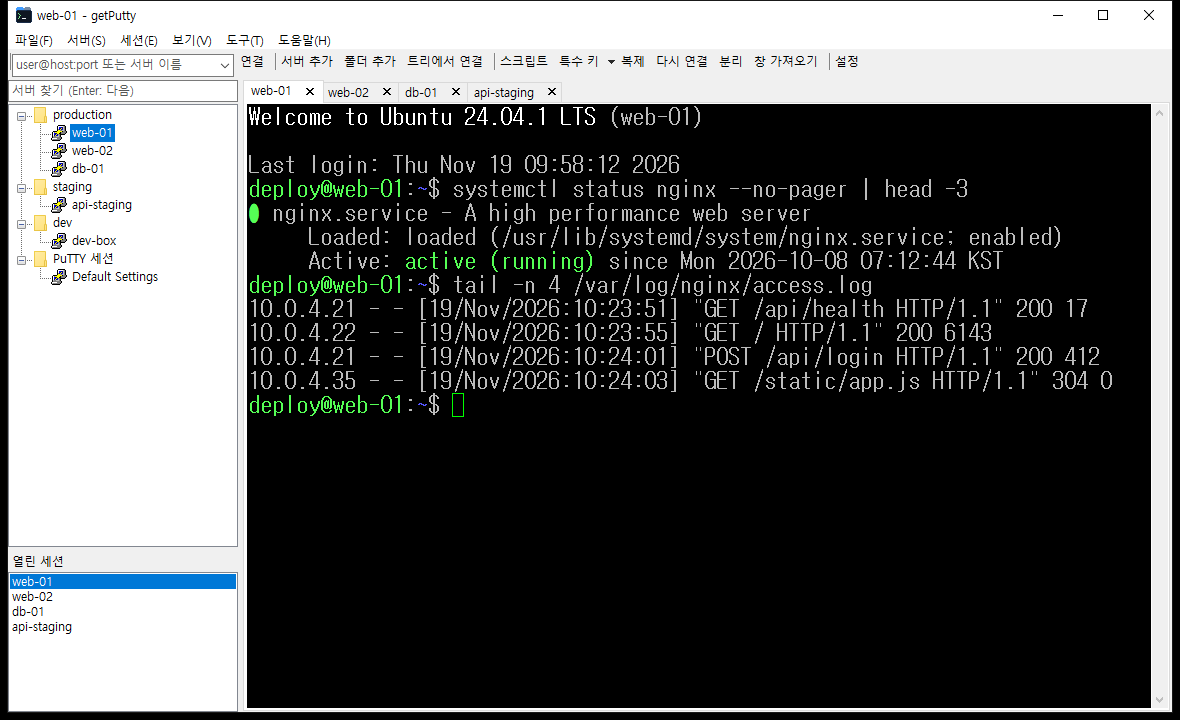
Double-click getPutty.exe. The window has the server tree on the left and a start page on the right.
- Finding PuTTY: getPutty looks for
putty.exenext to itself, then inPuTTY\putty.exeunder Program Files, thenputty.exeandkitty.exeon the PATH. If none is found it says putty.exe를 찾지 못했습니다. (putty.exe not found); choose it under 도구 → PuTTY 위치 (Tools → PuTTY location). - MTPuTTY settings: on the first run, if
%APPDATA%\TTYPlus\mtputty.xmlexists, getPutty asks whether to import it (MTPuTTY 설정이 있습니다.). See chapter 6. - PuTTY sessions: sessions saved in PuTTY appear automatically in the PuTTY 세션 (PuTTY sessions) folder at the bottom of the tree.
Settings file and portable mode
- Default location:
%APPDATA%\getPutty\getputty.xml - Portable mode: if a
getputty.xmlsits next togetPutty.exe, that file is used. To carry your current setup, copy the file from the default location next to the executable. - Backups: before the first save of each run the previous file is copied to
getputty.xml.bak. Saving writes a temporary file and swaps it in, so a crash or power cut never leaves a half-written file. - The path in use is shown at the bottom of 도구 → 설정 (Tools → Settings) and in 도움말 → getPutty 정보 (Help → About).
Managing Servers
Create, find, move and export folders and servers in the tree.
Adding a server
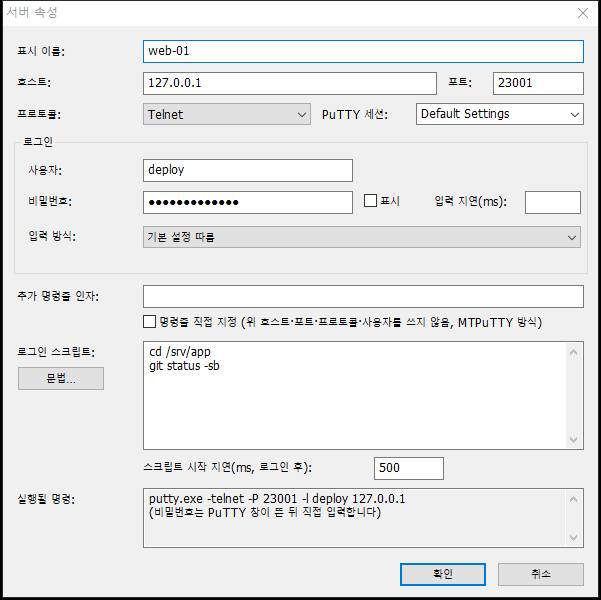
Use 서버 → 서버 추가 (Server → Add server), the toolbar’s 서버 추가 button, or Insert in the tree. The new server goes into the selected folder (or the folder of the selected server).
| Field | Meaning |
|---|---|
| 표시 이름 (Display name) | Name shown in the tree and on the tab. Empty means the host name. |
| 호스트 · 포트 (Host · Port) | Address to connect to. An empty port uses the protocol default (22 for SSH, etc.). |
| 프로토콜 (Protocol) | 세션 설정 따름 (from session), Raw, Telnet, Rlogin, SSH, Serial. For Serial put the port name such as COM1 in the host field. |
| PuTTY 세션 (PuTTY session) | Saved PuTTY session loaded first (-load), for fonts, colors and key settings. |
| 사용자 · 비밀번호 (User · Password) | Login. The password is stored encrypted with DPAPI; tick 표시 (Show) to see it. |
| 입력 지연 · 입력 방식 (Delay · Mode) | How the password reaches PuTTY — see chapter 4. |
| 추가 명령줄 인자 (Extra arguments) | Appended to the PuTTY command line, e.g. -X -C. |
| 명령줄 직접 지정 (Custom command line) | When ticked, host, port, protocol and user are ignored and the extra arguments are the whole command line — the same as MTPuTTY’s CLParams. |
| 로그인 스크립트 · 스크립트 시작 지연 (Login script · Start delay) | Typed automatically after connecting; syntax in chapter 4. |
| 실행될 명령 (Command preview) | The PuTTY command line the current values produce, with the password masked. |
Folders and organizing
- New folder: 서버 → 폴더 추가 creates 새 폴더 (New folder) and starts renaming it.
- Rename: F2, or click the selected item again.
- Move: drag an item onto a folder to put it inside, or onto a server to place it right after it. Hold Ctrl while dropping to copy.
- Copy, paste, duplicate: Ctrl+C, Ctrl+V or 복제 (Duplicate). Copies get new identifiers.
- Sort: 이름순 정렬 sorts the selected folder, folders first, then by name.
- Delete: Delete. Deleting a folder tells you how many servers it contains and asks first.
- The expanded/collapsed state of each folder is saved.
Finding a server
Type in the search box above the tree (서버 찾기 (Enter: 다음)). The first server whose name or host contains the text is selected and its folders are expanded. Enter or F3 finds the next match, Esc clears the box and returns to the tree, ↓ moves to the tree. Default hotkey: Ctrl+Shift+F.
The PuTTY sessions folder
Sessions saved in PuTTY are read from the registry into the PuTTY 세션 folder. With KiTTY selected, KiTTY’s registry sessions and its portable Sessions folder are read as well. The folder mirrors PuTTY’s own settings, so its items cannot be renamed or moved.
- Login data: open Properties on a session (the menu says 로그인 정보…, Login info) to attach a user, password and script. These are stored in getPutty’s file; PuTTY’s settings are not changed.
- Copy into the tree: drag a session into a folder above to create a normal server that uses it.
- Reload: after saving sessions in PuTTY, choose 파일 → PuTTY 세션 다시 읽기 (File → Reload PuTTY sessions).
Mass password update
서버 → 비밀번호 일괄 변경 sets the password of many servers at once. Pick the scope (selected folder or whole tree) and optionally filter:
- Same user name: the user field, or
-l namein a custom command line. - Host or command line contains: for example
192.168.1. - Only servers without a password: ticked by default — handy right after an MTPuTTY import.
Afterwards it reports 서버 N개의 비밀번호를 바꿨습니다. (Changed the password of N servers.)
Importing and exporting the tree
파일 → 트리 내보내기 (Export tree) saves the server tree as XML and asks whether to include passwords in plain text (Yes) or leave them out (No). DPAPI passwords cannot be decrypted on another PC, so to move to a new PC export with passwords, import, then delete the file.
파일 → 트리 가져오기 (Import tree) asks whether to replace the tree (Yes) or add a 가져온 서버 (Imported servers) folder (No). Choosing an MTPuTTY file switches to the MTPuTTY import automatically.
Connections & Tabs
Open sessions, arrange them as tabs or tiles, and deal with sessions that end.
Ways to connect
- From the tree: double-click a server or press Enter. On a folder, 폴더 전체 연결 (Connect all) opens every server in it, subfolders included, and asks first when there are more than 10.
- Toolbar box: type
user@host:port,host, or a server’s display name and press Enter. A matching server uses its settings; otherwise an SSH connection is made. The last 15 entries are remembered. - Connect-to dialog: 파일 → 빠른 연결 (Ctrl+Shift+K) lets you set protocol, port, PuTTY session, user and password; tick 서버 트리에 저장 (Save to tree) to keep it.
A new tab shows PuTTY를 시작하는 중입니다… (Starting PuTTY…) for a moment, then PuTTY appears inside it. Host-key prompts for unknown servers come from PuTTY itself; answer them as usual.
Working with tabs
- Close: the × on the tab, a middle click, or Ctrl+Shift+W. A connected session asks 'name' 세션을 닫을까요? (Close session ‘name’?) unless turned off in Settings.
- Reorder: drag a tab onto another tab.
- Right-click menu: rename tab, duplicate session, reconnect, send script, send special key, detach, PuTTY 메뉴 (PuTTY menu), close, close others, close all.
- Tab names: by default the server’s display name; in Settings you can switch to the PuTTY window title (e.g.
user@host: ~). A name set with 탭 이름 바꾸기 (Rename tab) sticks; clearing it restores the default. - PuTTY menu: PuTTY’s own system menu (change settings, event log, clear scrollback, reset terminal…). The keyboard Menu key opens it too.
- Next / previous tab: Ctrl+Tab, Ctrl+Shift+Tab.
Layouts
Choose from the 보기 (View) menu. In tiled layouts every open session is visible and the active one has a blue border; click a session to make it active.
| Menu item | Layout |
|---|---|
| 탭 하나씩 보기 | Tabs — only the selected session is visible (default). |
| 좌우로 나란히 | Side by side — all sessions in columns. |
| 위아래로 나란히 | Stacked — all sessions in rows. |
| 바둑판 | Grid — rows and columns chosen from the count (2×2 for four). |
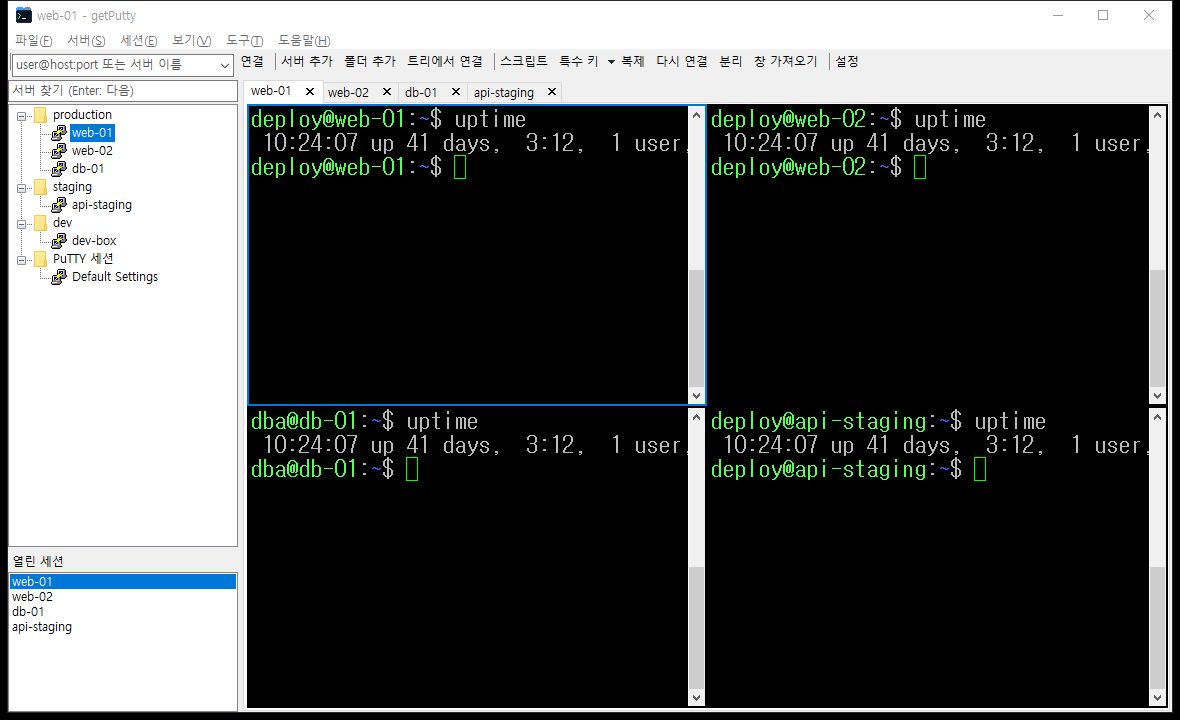
The same menu hides the server tree, sessions list, toolbar or menu bar and moves the tabs to the bottom. If the menu bar is hidden, bring it back with Ctrl+Shift+M or from the right-click menu of the tab area. Drag the dividers between tree, sessions list and tabs to resize them.
Open sessions list
The 열린 세션 (Open sessions) list at the bottom left mirrors the tabs. Click to switch, right-click for the tab menu. A state follows the name: (연결 중) connecting, (끊김) disconnected, (재연결 대기) waiting to reconnect, (종료) ended.
Detach and attach
- 분리 - 별도 창으로 (Detach) turns the session back into a normal PuTTY window. The connection stays up.
- 열린 PuTTY 창 가져오기 (Attach) lists PuTTY windows opened outside getPutty (or detached ones) and pulls the one you pick into a tab. getPutty did not start such a session, so Reconnect and Duplicate are not available for it.
When a session ends
PuTTY exiting with code 0 is a normal end. A non-zero exit code, or (inactive) appearing in the PuTTY title (connection lost), is an abnormal end. What happens next is set in Settings.
| Tab shows | Meaning |
|---|---|
| [끊김] name | PuTTY is running but disconnected. Use Restart Session in the PuTTY menu, or Reconnect. |
| [종료] name | PuTTY has exited. The tab shows 세션이 종료되었습니다 (종료 코드 N). (Session ended, exit code N) and a 다시 연결 (Reconnect) button. |
| [재연결] name | Waiting to reconnect automatically: 연결이 끊어졌습니다. N초 후 다시 연결합니다… (N번째 시도) |
Login Automation & Scripts
How passwords reach PuTTY, login scripts, and sending scripts to many sessions.
Password modes
Set per server; 기본 설정 따름 (use default) takes the default from Settings, which is Automatic initially.
| Mode | Behavior | On command line? |
|---|---|---|
| 자동 (Automatic) | -pwfile when PuTTY is 0.77+ and the protocol is SSH (or from session); otherwise typed. | No |
| PuTTY 창에 입력 (Type into window) | After the PuTTY window appears and the delay (1500 ms default) passes, the password and Enter are typed. | No |
| -pwfile (PuTTY 0.77+) | A hidden file in the user’s temp folder, deleted a few seconds after PuTTY starts. Falls back to typing on older PuTTY. | No |
| -pw 명령줄 (not recommended) | Passed as a command-line argument. | Yes |
Timing of the typed mode
getPutty cannot see PuTTY’s password prompt, so it types after a fixed delay. If the server shows the prompt later than that, the keystrokes arrive too early and the login fails with Access denied. Increase the delay, or upgrade PuTTY to 0.77+ to use -pwfile.
Login scripts
A server’s login script is typed automatically after connecting: after the password when getPutty types it, otherwise counted from the moment the PuTTY window appears, plus the start delay. With -pwfile or key authentication, give the start delay enough time for the login to finish (e.g. 1500 ms).
cd /srv/app
git status -sb
Script syntax
| Write | Meaning |
|---|---|
| Plain text | Typed as is. |
| Line break | Enter. A last line without a trailing line break is typed but not submitted. |
| {ENTER} {ESC} {TAB} {BS} {SPACE} | Special keys |
| {UP} {DOWN} {LEFT} {RIGHT} | Arrow keys |
| {HOME} {END} {PGUP} {PGDN} {INS} {DEL} | Editing keys |
| {F1} … {F12} | Function keys |
| {CTRL+C} | Control combination; any {CTRL+letter} works. |
| {ALT+x} | Esc followed by x (how terminals encode Alt). |
| {WAIT 500} · {SLEEP 500} | Pause in milliseconds. |
| {USER} {PASSWORD} {HOST} | Replaced by the server’s stored values. |
| {{ | A literal { |
Example: become root, then go to the log folder.
sudo -i
{WAIT 800}{PASSWORD}
cd /var/log
The same summary is under 도움말 → 스크립트 문법 (Help → Script syntax).
Send script
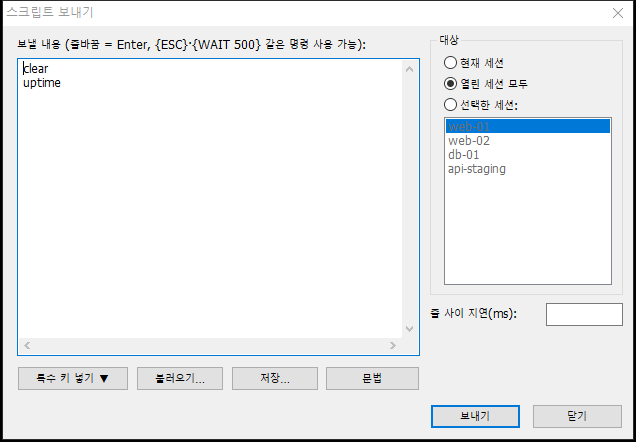
세션 → 스크립트 보내기 (Session → Send script, Ctrl+Shift+S) sends text to open sessions.
- Target: 현재 세션 (current), 열린 세션 모두 (all open), or 선택한 세션 (selected). Only connected sessions receive it.
- 줄 사이 지연(ms): delay after each line, to give the server time.
- 특수 키 넣기 ▼: inserts a key,
{WAIT 500},{PASSWORD}or{USER}at the cursor. - 불러오기… · 저장…: load and save scripts as text files (UTF-8, otherwise the system code page).
- The last text, target and delay are remembered.
세션 → 특수 키 보내기, the toolbar’s 특수 키 ▾ and the tab menu send a single key to the current session without the dialog.
Hotkeys & Settings
Default hotkeys, remapping them, and every setting.
Default hotkeys
Hotkeys work while getPutty is the foreground window, even when PuTTY has the focus. They default to Ctrl+Shift combinations so that shell shortcuts such as Ctrl+B, Ctrl+K and Ctrl+T still reach the server.
| Action | Hotkey |
|---|---|
| Next tab · previous tab | Ctrl+Tab · Ctrl+Shift+Tab |
| Switch focus tree ↔ PuTTY | Ctrl+` |
| Connect to | Ctrl+Shift+K |
| Send script | Ctrl+Shift+S |
| Duplicate session | Ctrl+Shift+D |
| Rename tab | Ctrl+Shift+R |
| Close tab | Ctrl+Shift+W |
| Find server | Ctrl+Shift+F |
| Show/hide server tree | Ctrl+Shift+B |
| Show/hide toolbar | Ctrl+Shift+T |
| Show/hide menu bar | Ctrl+Shift+M |
| PuTTY system menu | Menu key |
With the tree focused: Enter connect, Insert add server, F2 rename, Delete delete, Ctrl+C/V copy/paste, Ctrl+F find, F3 find next.
Remapping hotkeys
In 도구 → 단축키 (Tools → Hotkeys) pick an action, press the new keys in the 새 단축키 box and click 지정 (Set). If another action had the same keys it is cleared. Keys without Ctrl or Alt (other than F-keys and the Menu key) are refused because they would swallow typing in PuTTY. Keys the box cannot capture, such as Ctrl+Tab, come back with 모두 기본값 (Reset all).
Settings
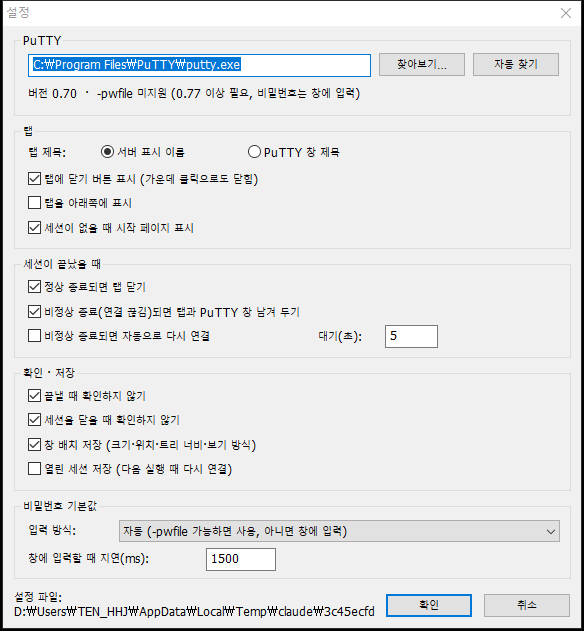
| Setting | Default | Notes |
|---|---|---|
| PuTTY path | Detected | 찾아보기… (Browse) or 자동 찾기 (Detect). Version and -pwfile support are shown below. |
| 탭 제목 Tab title | Display name | Or the PuTTY window title. |
| Close buttons on tabs | On | Middle click closes tabs even when off. |
| Tabs at the bottom | Off | |
| Start page when no session is open | On | |
| Close tab on normal end | On | |
| Keep tab and PuTTY window on abnormal end | On | Off closes the tab right away. |
| Reconnect automatically on abnormal end · wait (s) | Off · 5 | Takes precedence over the item above. |
| Don’t confirm on exit | Off | Asked only when sessions are open. |
| Don’t confirm closing a session | Off | |
| Save window layout | On | Window size and position, tree width, sessions list height, layout, hidden bars. |
| Save open sessions | Off | Reopens the sessions (and custom tab names) that were open at exit. Attached windows are not included. |
| Default password mode · delay (ms) | Automatic · 1500 | Used by servers set to 기본 설정 따름. |
Moving from MTPuTTY
Bring MTPuTTY’s server tree and options into getPutty.
Steps
- Choose 파일 → MTPuTTY 설정 가져오기 (File → Import MTPuTTY settings). If
%APPDATA%\TTYPlus\mtputty.xmlexists you are asked whether to use it; No lets you pick another file, such as a portable MTPuTTY’smtputty.xml. - Answer whether to replace the current tree. Yes replaces it and also imports MTPuTTY’s PuTTY path, options and hotkeys; No only adds a MTPuTTY에서 가져옴 (Imported from MTPuTTY) folder.
- getPutty reports how many servers were imported and how many need their password re-entered. Yes opens Mass password update; filter by user name (e.g.
deploy) and repeat per user.
What is imported
| MTPuTTY | getPutty |
|---|---|
| Folders, expanded state, display names | As is |
| ServerName, Port, UserName, connection type, PuTTY session | As is |
| CLParams (command line) | Extra arguments with Custom command line on (same behavior as MTPuTTY) |
A real -pw value in CLParams | Removed from the command line and stored as the encrypted password |
-pw ***** in CLParams | Removed — it is only a mask (password must be re-entered) |
| Password field | Not imported (see below) |
| PuttyLocation, tab caption, end-of-session handling, auto-reconnect, confirmations, close buttons, tab position, save layout/sessions | Imported when replacing the tree |
| Hotkeys (TShortCut values) | Assigned to the same actions (when replacing the tree) |
Why MTPuTTY passwords cannot be imported
MTPuTTY encrypts passwords with its own undocumented scheme (an 8-byte block cipher) in <Password>, writes only the mask -pw ***** into command lines, and substitutes the real value when it launches PuTTY. The file alone does not reveal the password.
Differences from MTPuTTY
- Tiling: automatic side-by-side, stacked and grid layouts instead of dragging tabs into dock positions.
- Themes: none; getPutty uses the standard Windows look.
- Default hotkeys: Ctrl+Shift combinations. Replacing the tree from MTPuTTY brings your MTPuTTY hotkeys along.
- Interface language: Korean.
Troubleshooting
Messages shown in a tab, and common problems.
Messages in a tab
| Message | Cause and fix |
|---|---|
| PuTTY를 시작하는 중입니다… Starting PuTTY… | Waiting for the PuTTY window. If PuTTY shows its configuration window or a host-key prompt, answer it. |
| PuTTY 실행 파일을 찾을 수 없습니다. 도구 → PuTTY 위치에서 지정하세요. PuTTY executable not found. | There is no putty.exe at the configured path. Choose it again. |
| PuTTY를 실행하지 못했습니다 (오류 N). Could not start PuTTY (error N). | Windows refused to start PuTTY. Check the error number (5 = access denied, 2 = file not found). |
| PuTTY 창을 찾지 못했습니다. (PuTTY 대화상자가 떠 있는지 확인하세요) PuTTY window not found. | No PuTTY window appeared within 30 seconds. A wrong command-line argument can make PuTTY show an error box instead. |
| 세션이 종료되었습니다 (종료 코드 N). Session ended (exit code N). | PuTTY exited. Click Reconnect. |
| 연결이 끊어졌습니다. N초 후 다시 연결합니다… (N번째 시도) Disconnected; reconnecting in N s (attempt N). | Automatic reconnect is in progress. Close the tab to stop it. |
| 가져온 PuTTY 창은 다시 실행할 수 없습니다. Attached PuTTY windows cannot be restarted. | The session came in through Attach. Connect again from the tree. |
Common problems
- Access denied at login: in the typed mode the password may have arrived before the server’s prompt. Increase the delay or upgrade PuTTY to 0.77+. Tick Show in the server dialog to check the password itself.
- Passwords are empty on another PC: DPAPI passwords decrypt only for the same Windows account on the same PC. Export the tree with passwords, or re-enter them.
- A hotkey does nothing: getPutty must be the foreground window. If another program already owns the same global hotkey, change it under Tools → Hotkeys. Hotkeys pause while a dialog or menu is open.
- The PuTTY sessions folder is empty: PuTTY has no saved sessions for this Windows account. For KiTTY, set the PuTTY location to
kitty.exe. - Script characters get mixed up: text sent right after a key that makes the shell reset its line, like
{CTRL+C}, can be partly dropped by the shell. Put{WAIT 300}in between. - The settings file looks broken: getPutty copies a file it cannot read to
getputty.xml.brokenand starts with defaults. Restore fromgetputty.xml.bakif needed.
Technical Reference
How it is built, compatibility and file format.
The executable
- A 32-bit (x86) program in plain C on the Win32 API, linked without any C runtime (
/NODEFAULTLIB, its own entry point,memsetand friends). - The PE header declares OS and subsystem version 5.1 (Windows XP). It is compiled with
_WIN32_WINNT=0x0501, so using any newer API is a compile error. - Imported DLLs: kernel32, user32, gdi32, comctl32, comdlg32, shell32, advapi32, crypt32, ole32, version (10). Each build runs a script that rejects C-runtime DLLs and Vista-or-later APIs.
- Includes a Common Controls 6.0 manifest and system-DPI awareness.
How PuTTY is embedded
getPutty starts PuTTY hidden, waits until it is idle, and re-parents its window into the tab area. Some PuTTY versions redraw their caption after it is removed, so getPutty places the window offset by the caption and border size and lets the tab area clip them off. Later resizes are asynchronous.
Settings file format
getputty.xml is UTF-8 XML. Server elements use MTPuTTY’s names, plus getPutty’s own (PasswordMode, CustomCmd, Script).
<GetPutty version="1">
  <Settings> … <Hotkeys> … </Hotkeys> </Settings>
  <Servers>
    <Node Type="0" Expanded="1"><DisplayName>production</DisplayName>
      <Node Type="1">
        <DisplayName>web-01</DisplayName> <ServerName>10.0.0.11</ServerName>
        <PuttyConType>4</PuttyConType> <Port>22</Port> <UserName>deploy</UserName>
        <Password enc="dpapi">AQAAANCMnd8B…</Password>
      </Node>
    </Node>
  </Servers>
  <PuttySessions> … </PuttySessions>   (login data attached to PuTTY sessions)
  <OpenSessions> … </OpenSessions>     (saved open sessions)
</GetPutty>
PuttyConType: 0 from session, 1 Raw, 2 Telnet, 3 Rlogin, 4 SSH, 5 Serial. Hotkey values use MTPuTTY’s format (low 8 bits virtual key, Shift 0x2000, Ctrl 0x4000, Alt 0x8000).